Using documentation assets
Store reusable documentation files in static/assets/. Link to the same file
from documentation pages instead of making separate HTML and Markdown copies.
The examples below are real static files you can inspect when adding an asset.
Choose a directory
| Source directory | Purpose | Working example |
|---|---|---|
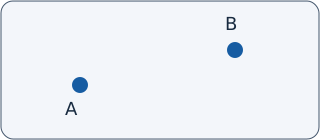
static/assets/images/ | Illustrations | Two sample positions |
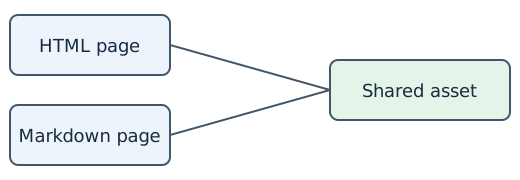
static/assets/diagrams/ | Diagrams stored as files | Shared asset diagram |
static/assets/schemas/ | Structured schemas | Illustrative position schema |
static/assets/examples/ | Standalone data examples | Point GeoJSON example |
static/assets/downloads/ | Downloadable datasets and documents | Sample positions CSV |
These samples demonstrate asset authoring and publication. The JSON schema illustrates a two-number array; it is not a geometry validator or conformance schema. The CSV positions have no assigned coordinate reference system.
Add and reference a file
- Save a real file in the directory matching its purpose. Preserve its format and use lowercase, hyphen-separated names without spaces.
- Reference its published location relative to the documentation page.
Omit
static/from the URL: it is a source directory, not a public path. - Give each image descriptive alternative text and each download a useful label.
- Build and check both the HTML page and its portable Markdown counterpart.
From a page in docs/shared/, write:
[Inspect the position schema](../assets/schemas/position.schema.json)
[Open the GeoJSON example](../assets/examples/point.geojson)
[Download sample positions (CSV)](../assets/downloads/positions.csv)
The image is rendered from the external SVG file:

A file diagram uses the same image syntax:

Match the page depth
Paths are relative to the published page, whose directory structure matches
docs/. A deeper page needs another ../ for each additional directory.
| Documentation source | Asset reference |
|---|---|
docs/index.md | ./assets/images/two-positions.svg |
docs/shared/using-documentation-assets.md | ../assets/images/two-positions.svg |
docs/spatial-core/v1/index.md | ../../assets/images/two-positions.svg |
static/assets/images/two-positions.svg is published as
assets/images/two-positions.svg under the site's base URL. Both representations
resolve to that one resource, including development publication under
/spatial-docs/. Keep documentation links relative so the Markdown corpus can
move together with its assets.
Keep assets portable
- Use lowercase paths and exact filename casing, with no spaces or reserved characters.
- Store essential illustrations locally; do not depend on a third-party image host.
- Reference SVG as an external image. Do not paste SVG or other raw HTML into Markdown.
- Do not embed assets as
data:URLs or use symbolic links as source files. - Keep static source files unchanged during publication; do not add generated hashes to their names.
- Use files such as SVG or raster images for pictures, JSON/YAML/XML for structured resources, and GeoJSON/WKT/CSV/text for appropriate data examples. A new format must be supported explicitly by the publication contract.
- Keep inline fenced code blocks in the page when no independent downloadable file is needed.
Check the result
sh .githooks/pre-commit
npm run validate:assets
npm run build
npm run serve
Open this page's .html and .md representations, inspect both images, and open
each linked resource. Confirm that the published files match the source bytes.
The shared assets publication contract
lists the supported extensions, SVG safety restrictions and validation checks.
The internal .publication-metadata/asset-manifest.json records each published path, source and hash.
A failed build retains the preceding valid publication directory.
See the portable Markdown publication contract for the shared asset and relative-link requirements.